
To change app name of any device, it may seem like a daunting task, but it can be surprisingly straightforward with the right guidance. Whether you’re trying to rename an app on your iPhone, Android device, or a specific application like the McDonald’s or Chase app, this guide will walk you through the necessary steps. We’ll also explore how no-code app builders can simplify the process of modifying app names, offering a user-friendly alternative to traditional coding methods.
In today’s digital age, personalizing our devices is more important than ever. An app’s name not only serves as an identifier but also contributes to the overall user experience. A well-named app can make navigation easier and enhance the aesthetic appeal of your device’s interface. By the end of this guide, you’ll be equipped with the knowledge to tailor your apps to better fit your personal style and organizational needs.
Before diving into the technicalities, let’s explore some reasons why you might want to change an app’s name.
- Personalization: Personalizing your device by renaming apps can make it feel more uniquely yours. It allows you to express your creativity and individuality, turning your smartphone or tablet into a true reflection of your personality. This small change can make your device feel more familiar and enjoyable to use on a daily basis.
- Organization: Renaming apps can help you organize your apps better, making it easier to locate them. For instance, you might have multiple apps related to work, fitness, or entertainment; renaming them with a consistent naming convention can streamline your workflow and reduce clutter. This can lead to increased productivity as you spend less time searching for the right app.
- Avoiding Confusion: Sometimes apps have similar names, and renaming them can help avoid confusion. This is especially useful if you have multiple apps from the same developer or apps that serve similar functions. By customizing their names, you can quickly differentiate between them, making your user experience more intuitive.
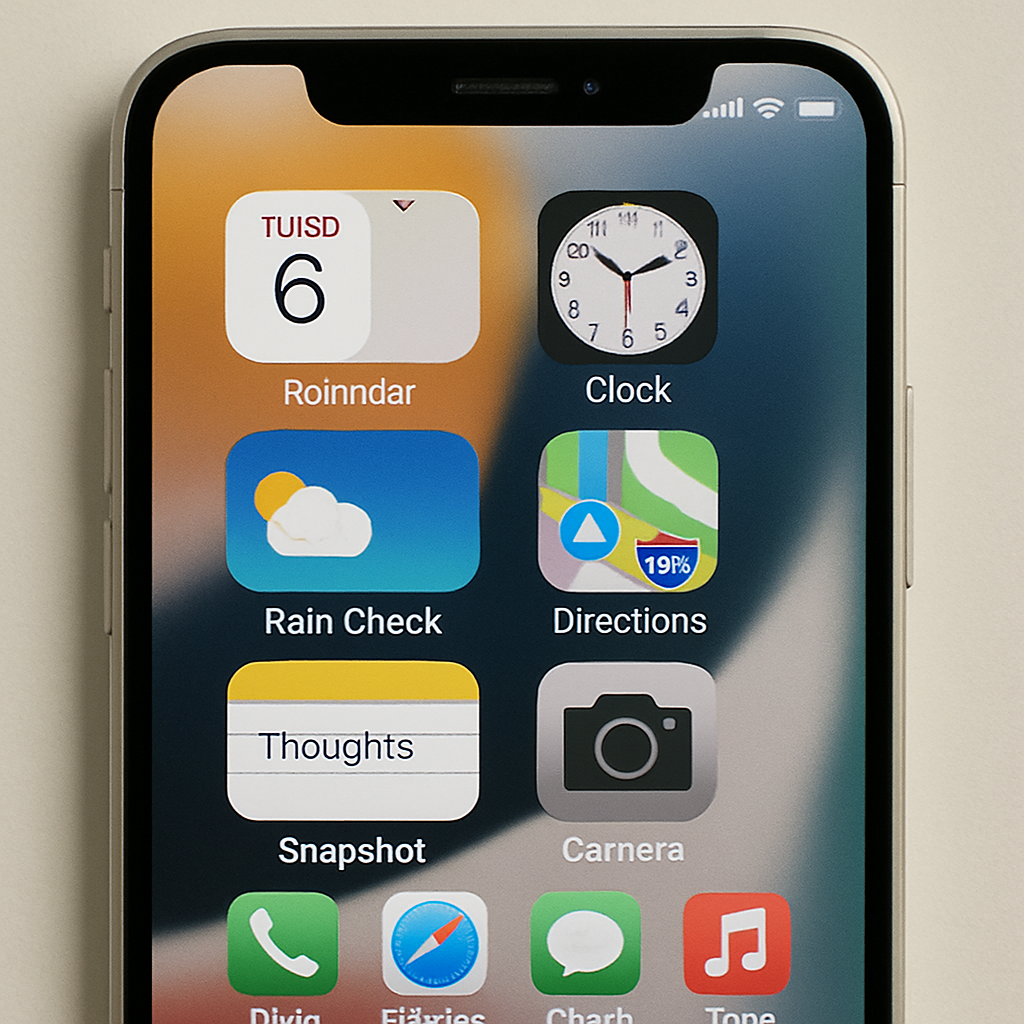
Changing the name of an app on an iPhone isn’t as direct as it might be on other platforms, but there are still ways to achieve this goal. Apple’s ecosystem is known for its design uniformity and control, which sometimes limits direct customization options. However, with a few creative workarounds, you can still achieve a personalized app layout.
Method 1: Using Shortcuts
- Open the Shortcuts App: First, ensure you have the Shortcuts app installed on your iPhone. It’s a free app available on the App Store, and it serves as a versatile tool for a multitude of tasks, not just renaming apps.
- Create a New Shortcut: Tap on the “+” icon to create a new shortcut. This step is the foundation for creating a custom icon that functions identically to the app you want to rename.
- Add Action: Tap “Add Action” and search for the “Open App” action. Tap on it to add it to your shortcut. This action serves as the command that will launch your chosen app when the shortcut is activated.
- Choose App: Tap on the “App” placeholder and select the app you want to rename. This links your shortcut to the specific app, ensuring seamless functionality.
- Rename Shortcut: Tap on the three dots in the corner, then tap “Add to Home Screen.” Here, you can enter the desired name for the app. This is the step where you exercise your creativity, choosing a name that is both meaningful and useful to you.
- Choose Icon: Tap on the icon next to the name field to select a custom icon if desired. Custom icons can significantly enhance the visual appeal of your home screen.
- Add to Home Screen: Finally, tap “Add” to place the renamed shortcut on your home screen. This creates a new icon that behaves just like the original app, but with your customized name and icon.
Method 2: Using Custom Apps
Some third-party applications can create custom app icons with different names. However, these apps often require a subscription or one-time payment. They offer more design flexibility and can be a worthwhile investment for users who frequently customize their home screens. Be sure to read reviews and check compatibility with your device before downloading any third-party app.
How to Change the Name of an App on Android
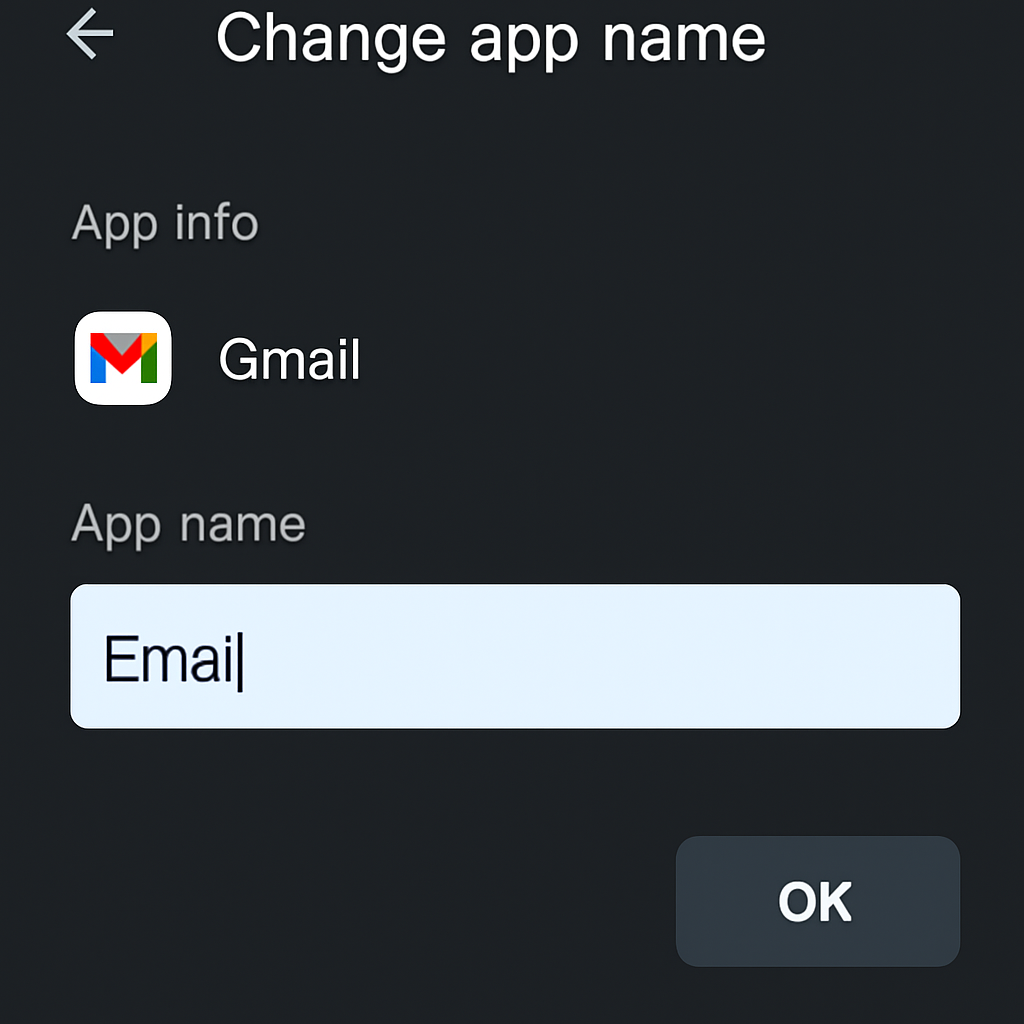
Renaming an app on Android is generally more flexible than on iOS. The Android operating system is known for its open-source nature, which allows for greater customization. With the right tools, changing app names can be a quick and easy process.
Using a Third-Party Launcher
- Download a Launcher: Install a third-party launcher like Nova Launcher from the Google Play Store. Launchers can completely transform your Android interface, offering more customization options than the default system.
- Set as Default: Open the launcher and set it as your default launcher if prompted. This ensures that any changes you make will be consistently applied across your device.
- Long Press App Icon: Find the app you want to rename. Long press on its icon. This gesture usually opens a menu of options related to the app.
- Edit: Tap the “Edit” or “Rename” option. This is where you can enter a new name for the app, allowing you to tailor it to your preferences.
- Enter New Name: Type in the new name you wish to give the app. Consider using names that are short, descriptive, and easy to remember.
- Save: Confirm the change, and the app will appear with the new name in your app drawer and home screen. This change is purely cosmetic and does not affect the app’s functionality.
How to Change the Name of a Specific App
McDonald’s App
For apps like the McDonald’s app, which don’t offer built-in renaming options, the Shortcuts method on iPhone or a third-party launcher on Android can be used to create a renamed shortcut. This allows you to maintain a consistent naming style across all your apps, even those with strict branding.
Chase App (Zelle)
For changing the Zelle name on the Chase app, you typically need to access the settings within the Zelle option in the app and update your display name there. Note that this changes your display name within the app, not the app icon itself. This is an important distinction, as it affects how your name appears to other users during transactions.
Using No-Code App Builders for App Name Change

by Zulfugar Karimov (https://unsplash.com/@zulfugarkarimov)
No-code app builders like nandbox offer an intuitive way to create or modify apps without needing extensive coding knowledge. These platforms are revolutionizing app development by making it accessible to those without technical expertise. Here’s how you can use them:
- Sign Up: Create an account on the no-code platform. Most platforms offer free trials or affordable plans that allow you to test their features.
- Select Template: Choose a template that fits your needs. Templates are pre-designed app structures that can be customized to suit your specific requirements.
- Modify App Name: Within the builder, you’ll have the option to customize the app’s name, along with other features like layout and design. This is where you can experiment with different names and visual styles.
- Deploy Changes: Once satisfied, deploy the changes. The app will reflect the new name once downloaded or updated. This process is usually straightforward, with platforms providing detailed guidance to assist you.
Considerations When Renaming Apps
- Functionality: Remember that renaming an app does not change its functionality or the original app name within system settings. This means that while the app may appear differently on your home screen, it retains its original identity within the system.
- Updates: App updates might revert name changes, especially on iOS if they overwrite shortcuts. It’s important to be aware of this possibility and be prepared to reapply your customizations if necessary.
- Compatibility: Some methods might not work for all apps, especially those with strict branding guidelines. Always test any changes you make to ensure they do not interfere with the app’s operation or violate any terms of service.
Conclusion
Changing the name of an app can enhance your device’s organization and personalization. Whether you’re using shortcuts on iPhone, third-party launchers on Android, or exploring no-code app builders, several methods can help you achieve the desired customization. Each method has its own set of advantages, and the best choice depends on your specific needs and technical comfort level.
As technology evolves, more user-friendly options will likely become available, making it even easier to tailor your digital experience to your liking. Staying informed about new tools and techniques will empower you to make the most out of your devices, ensuring they serve you in the most efficient and enjoyable way possible.
Q&A
Can I actually change an app’s name on an iPhone?
Not directly. iOS doesn’t let you rename installed apps, but you can create a custom Home Screen shortcut with your preferred name and icon. In Shortcuts, make a new shortcut with the “Open App” action, choose the app, then use “Add to Home Screen” to set a custom name and icon. The original app name remains in system settings, and app updates might require you to reapply your shortcut customization.
How do I rename an app on Android?
Use a third-party launcher. Install a launcher like Nova Launcher, set it as default, long-press the app icon, choose Edit or Rename, enter the new name, and save. The change appears on your Home Screen and in the app drawer. It’s purely cosmetic and doesn’t affect how the app works.
Can I rename specific apps like the McDonald’s app or change my Zelle name in the Chase app?
For McDonald’s (and most branded apps), you can’t change the in-app name or icon, but you can use iPhone Shortcuts or an Android launcher to create a renamed icon on your Home Screen. For Chase’s Zelle, you can change your display name within the Zelle settings in the app; this updates how your name appears to others in transactions but doesn’t change the app’s icon or label on your device.
Will renaming affect functionality or get undone by updates?
Renaming is cosmetic only. It doesn’t change the app’s functionality or its original name in system settings. App updates might revert customizations—especially on iOS if they overwrite Shortcuts—so you may need to reapply your changes. Some apps with strict branding may also be less compatible with certain customization methods.
When should I use a no-code app builder to change an app’s name?
Use a no-code builder like nandbox when you’re creating or modifying an app itself (rather than just its icon on your device). Sign up, pick a template, customize the app’s name and design, and deploy. After you publish, the app will reflect the new name when users download or update it.